I’ve added more ways to share your slides and presenter notes outside a live presentation: improved PDF printing, notes handouts, and export to Markdown.
Print slides and handouts
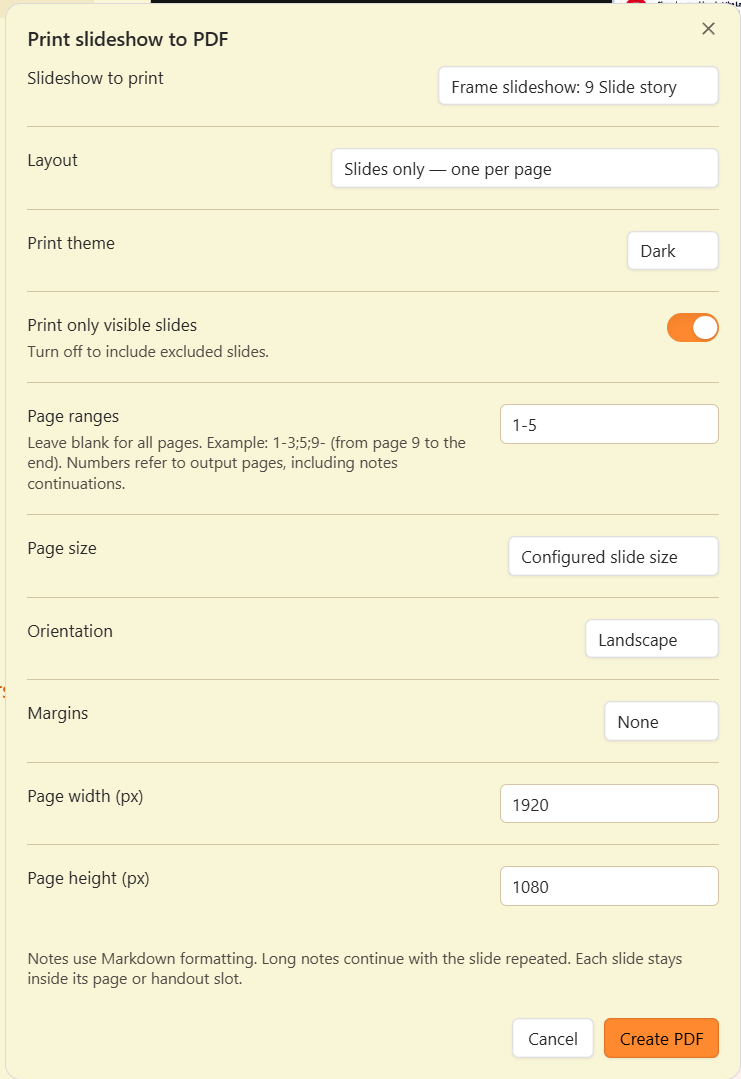
The printer button opens a draggable print setup window where you can choose:
- Slideshow: print the frame slideshow or any named line/arrow slideshow in your drawing.
- Layout: one slide per page, one slide with notes below it, or two/three slides with notes beside each slide.
- Print theme: Light or Dark. This defaults to the drawing’s current theme each time you open print setup.
- Visible slides or all slides: use the toggle to include excluded slides when needed.
- Page ranges: enter selections such as
1-3;5;9-, or leave blank to print everything. These numbers refer to output pages, including notes continuation pages. - Paper and margins: choose the configured slide size, A4, Letter, 16:9, or custom dimensions; select portrait or landscape orientation and your preferred margins.
Your print preferences are remembered for the next export.
Presenter notes now print with Markdown formatting, including headings, emphasis, lists, links, tables, and code. Long notes continue in another handout slot with the slide repeated.
Slides stay intact inside their page or handout slot. Changing the paper aspect ratio or margins no longer brings neighboring slides into the printout.
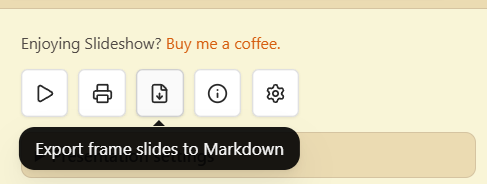
Export frame slides to Markdown
The new button beside the printer creates a Markdown note in the drawing’s folder. It includes every frame slide in sorter order, including excluded slides, with:
- The slide title.
- A frame embed linked to the original drawing.
- The slide’s Markdown presenter notes.
This gives you a starting point for a written companion to your presentation. You choose the filename, and the new note opens in a separate tab.
I’ve also fixed the initial slide framing when starting a presentation from the sidepanel.
If you haven’t tried the Slideshow script yet, this video walks you through getting started: