Excalidraw.com offers a few simple ways to share your drawings with others directly from the Share button in the top-right corner.
This video walks through the options step-by-step:
Note
I am not affiliated with Excalidraw or Excalidraw+.
You can get a lot done with the free version of Excalidraw.com, and I am not promoting anyone to purchase Excalidraw+.
That said, because of my contributions to the open-source project, I do have a complimentary Excalidraw+ subscription, and Excalidraw+ offers lots of valuable benefits.
Sharing Obsidian-Excalidraw Drawings
If you created your drawing inside Obsidian using the Obsidian-Excalidraw plugin, you can still easily share it via Excalidraw.com.
Simply:
- Open your drawing in Obsidian
- Press
CTRL/CMD+Ato select everything - Press
CTRL/CMD+Cto copy - Open Excalidraw.com
- Press
CTRL/CMD+Vto paste
Your drawing will transfer over, including images, ready for sharing or collaboration.
Free Sharing Options
1. Share a Scene via Link
This creates a shareable snapshot of your drawing.
When someone opens the link, they receive a copy of the scene as it existed at the time you created the link.
Important things to keep in mind:
- Future edits to your original drawing will not update the shared link
- If you continue evolving the drawing, you will need to create a new shared link
- People can freely modify their own copy without affecting yours
This option works well for:
- Templates
- Book-on-a-page summaries
- Static diagrams
- Sharing examples with the community
2. Invite People to Collaborate
Using Start a Session, you can invite others into a live collaboration room.
In this case:
- Everyone works on the same drawing
- Changes are synchronized live
- The scene evolves over time
This is useful for:
- Workshops
- Brainstorming sessions
- Team whiteboarding
- Live teaching
Keep in mind that collaborators can accidentally modify or delete content, since everyone is working in the same shared space.
Advanced Workshop Example
You can combine Obsidian and Excalidraw.com collaboration rooms in surprisingly powerful ways.
This article and video demonstrate how to create multiple breakout-room collaboration spaces and monitor them centrally from Obsidian:
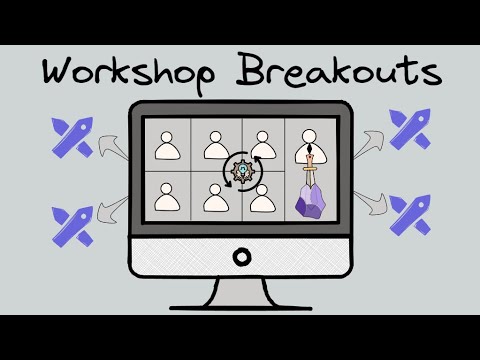
Using Excalidraw + Obsidian for Collaborative Workshop Breakout Rooms
It is a practical advanced example of what you can achieve using the free Excalidraw.com collaboration feature.
Excalidraw+ Sharing Features
Excalidraw+ adds a few additional sharing options.
Read-Only Live Share
You can share a live version of your drawing while keeping it read-only.
This is different from the normal scene share:
- Updates to your drawing remain live
- Viewers can follow changes over time
- You can optionally allow people to download their own copy
This is useful when you want to publish evolving visual notes or dashboards without opening the scene for editing.
Share a Presentation
Excalidraw+ also supports presentation sharing, making it easier to guide viewers through a sequence of frames or slides.
File Size Limits
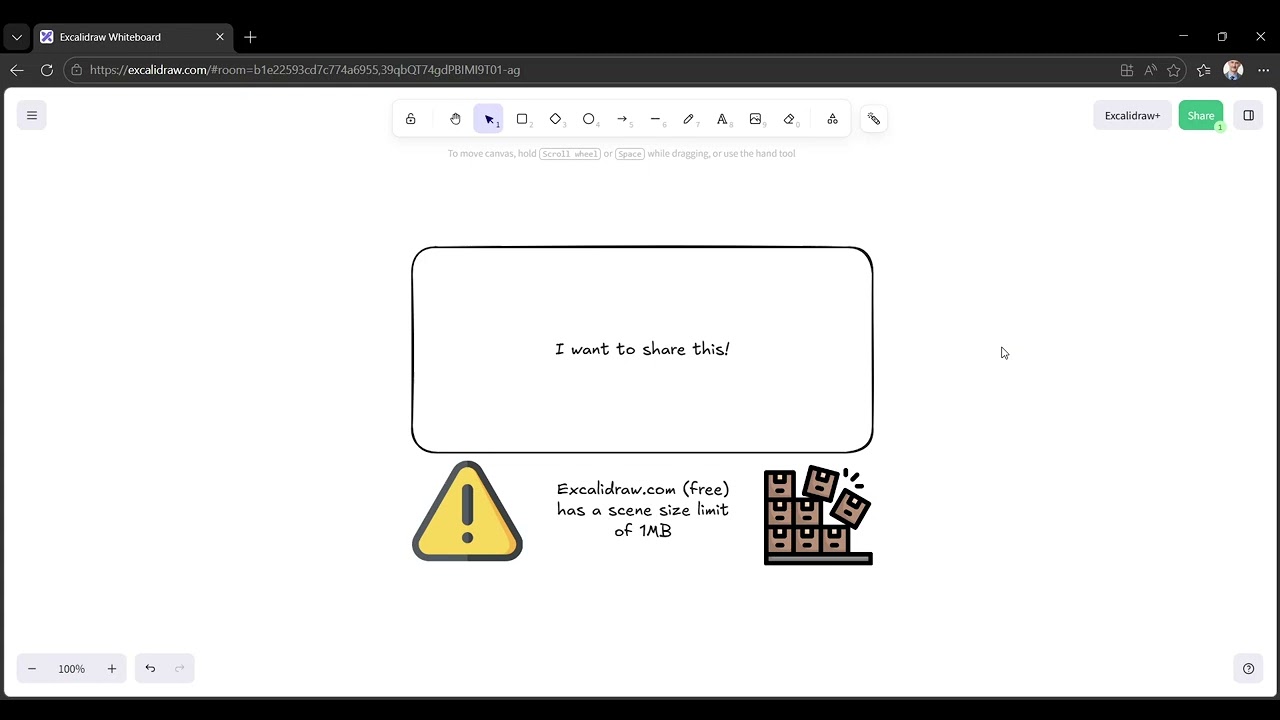
The free sharing options on Excalidraw.com have a scene size limit of approximately 1 MB.
This mainly becomes an issue when using:
- large images
- screenshots
- high-resolution photos
Simple drawings, icons, and hand-drawn visuals are usually fine.
Tip: SVG icons and simple line drawings are tiny compared to screenshots and photos.
Excalidraw+ removes the overall scene size limitation, but it still applies strict limits to individual image sizes. Large images may be automatically compressed or downgraded.
This is often more restrictive than working locally inside Obsidian with the Obsidian-Excalidraw plugin, where your drawings live directly on your machine.