Decide how much work happens in the background
In Settings → K-Plex → Indexing config → When K-Plex is inactive, the new Background effort slider controls indexing when you switch to another tab, another pane or another application.
- 0 — Paused: gather pending changes and catch up when K-Plex regains focus.
- 1–99: allow reduced background work. The default is 10.
- 100 — Same as foreground: use the selected indexing speed while K-Plex is inactive too.
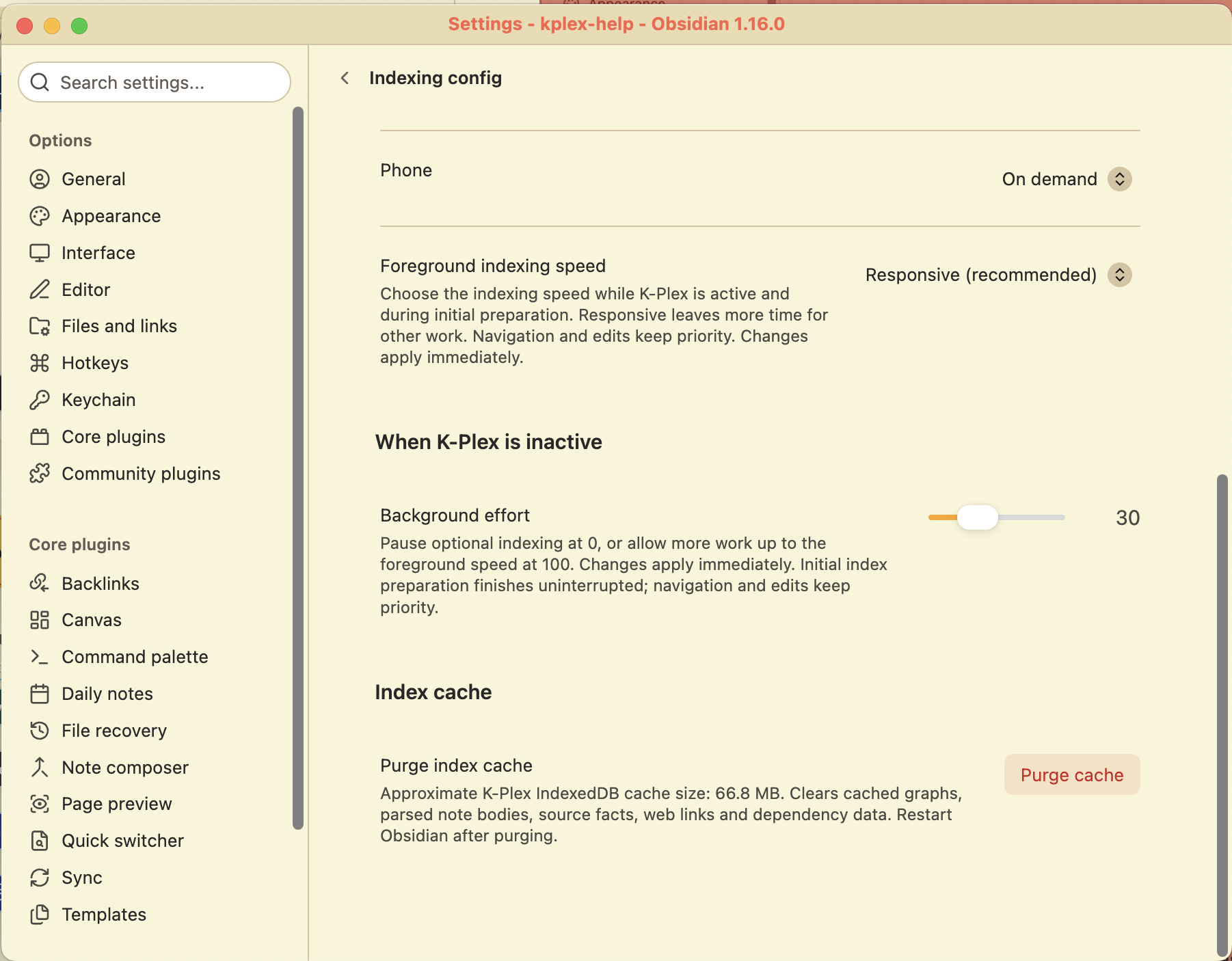
Desktop: choose the effort K-Plex uses while another pane, tab or application has focus.
The choice applies immediately in both Eager and On-demand modes. K-Plex’s brand mark dims while its canvas is inactive, including when you can still see it beside an editor. Returning to K-Plex lets indexing catch up.
This is separate from Prepare index before opening K-Plex, which decides when preparation starts, and Eager / On demand, which decides how much to prepare. Initial index preparation finishes uninterrupted. See On demand vs Eager in k-plex help.
New complete-cache saves wait until K-Plex has focus. A save that has already started finishes even if you switch away. Understanding index status in k-plex help explains the paused, reduced-work and waiting-for-focus indicators.
Edit prose without blinking connections
Ordinary text edits keep unchanged nodes, folder links and other connections in place while replacement information is prepared. Switching focus no longer replays arrival fades on an unchanged graph. Real link and ontology edits still update the map.
Editing during a compatible saved-graph restore also keeps reusable progress instead of discarding the cache and starting a full rebuild. K-Plex reconciles the affected notes and saves the updated result for later starts. See How indexing works in k-plex help.
Find the source of an appearance
Right-click a node or connection and choose Appearance sources to see the styling layers that apply to it. Follow a layer to its existing settings or styling-lens editor instead of searching through every style rule. See Colors and themes in k-plex help.
Read and open web links deliberately
Web-link nodes retain labels authored in Markdown links, making them easier to recognize. Optional Single-click external navigation opens a web link with one click only when it is already the central node. It is off by default; double-click and the Open actions remain available. See Web link indexing and Navigating the Plex in k-plex help.
Use the available space on mobile
Fullscreen works correctly when K-Plex starts in a mobile side panel, filling the Obsidian workspace and restoring the pane when you leave fullscreen. See Fullscreen and Zen mode in k-plex help.