Explore a note’s context, unfold a hierarchy, or organize connected notes around your own workflow. K-Plex 0.3.0 introduces three canvas views, in-place editing across the canvas, and shareable Facets presets and Graph Lenses.
Learn more
Explore the K-Plex Help vault for guides, screenshots and working examples of Compass, Mind Map, Facets and reusable workflows.
Three perspectives on your notes
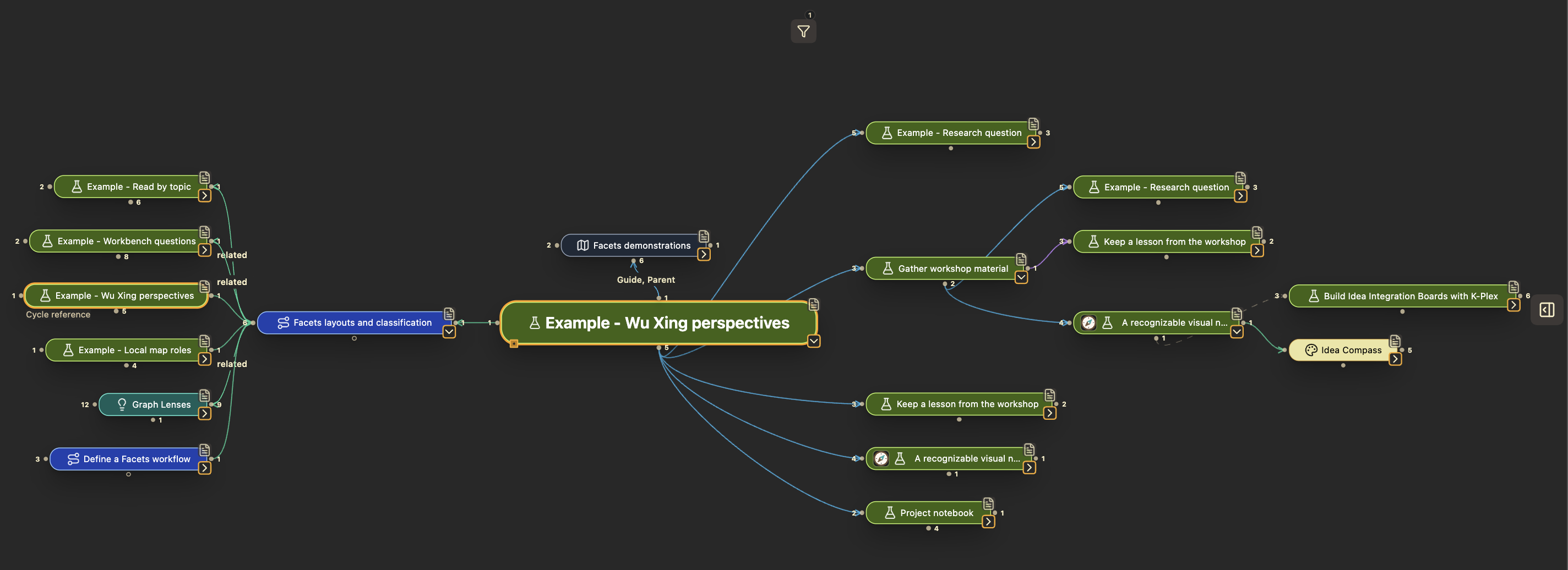
Open Views and lenses to choose a view. Each canvas keeps its own selection, so you can explore the same topic from different perspectives.
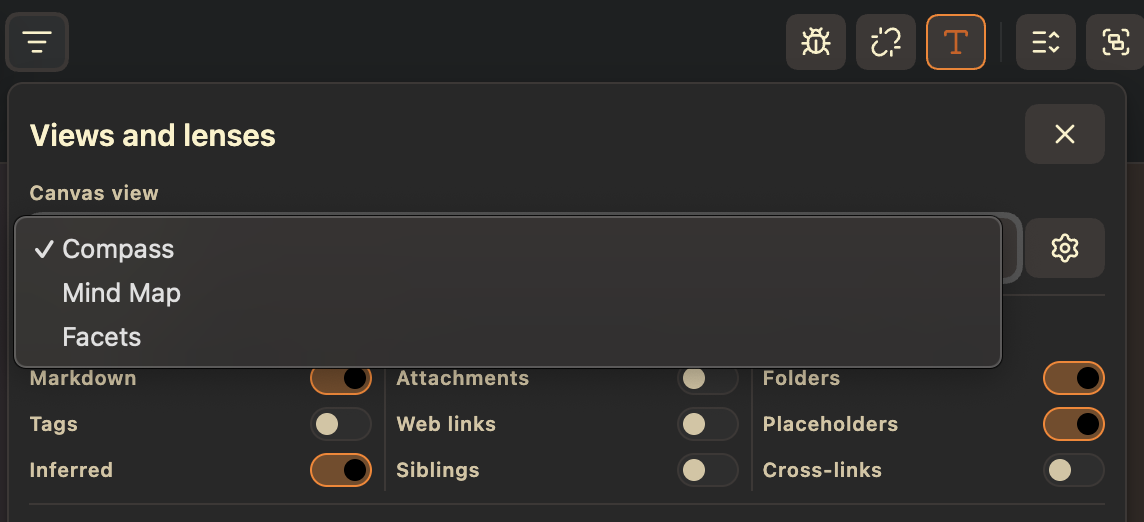
- Compass is the new name for the familiar directional view: parents above, children below, and companion relationships to either side.
- Mind Map unfolds several generations of a hierarchy around a stable root.
- Facets arranges the current note’s direct neighbors into categories you define.
Shared navigation, visibility and editor preferences now live under Settings → K-Plex → Canvas behavior. Each view’s arrangement and preset settings are in its Views group.
Develop a hierarchy with Mind Map
Keep an outline in view while unfolding branches and moving keyboard selection. Choose a balanced, left-growing or right-growing child tree, expand one generation at a time, and keep parent context above the root.
Click a note or press Enter to center it and start its map. Use the separate branch chevron to fold or unfold without changing the root. With the default shortcuts, Alt+Enter on Windows or Option+Enter on macOS does the same.
Selecting a History entry or pin also starts the map at that destination. Repeated and circular connections remain bounded rather than expanding forever.
Make your workflow visible with Facets
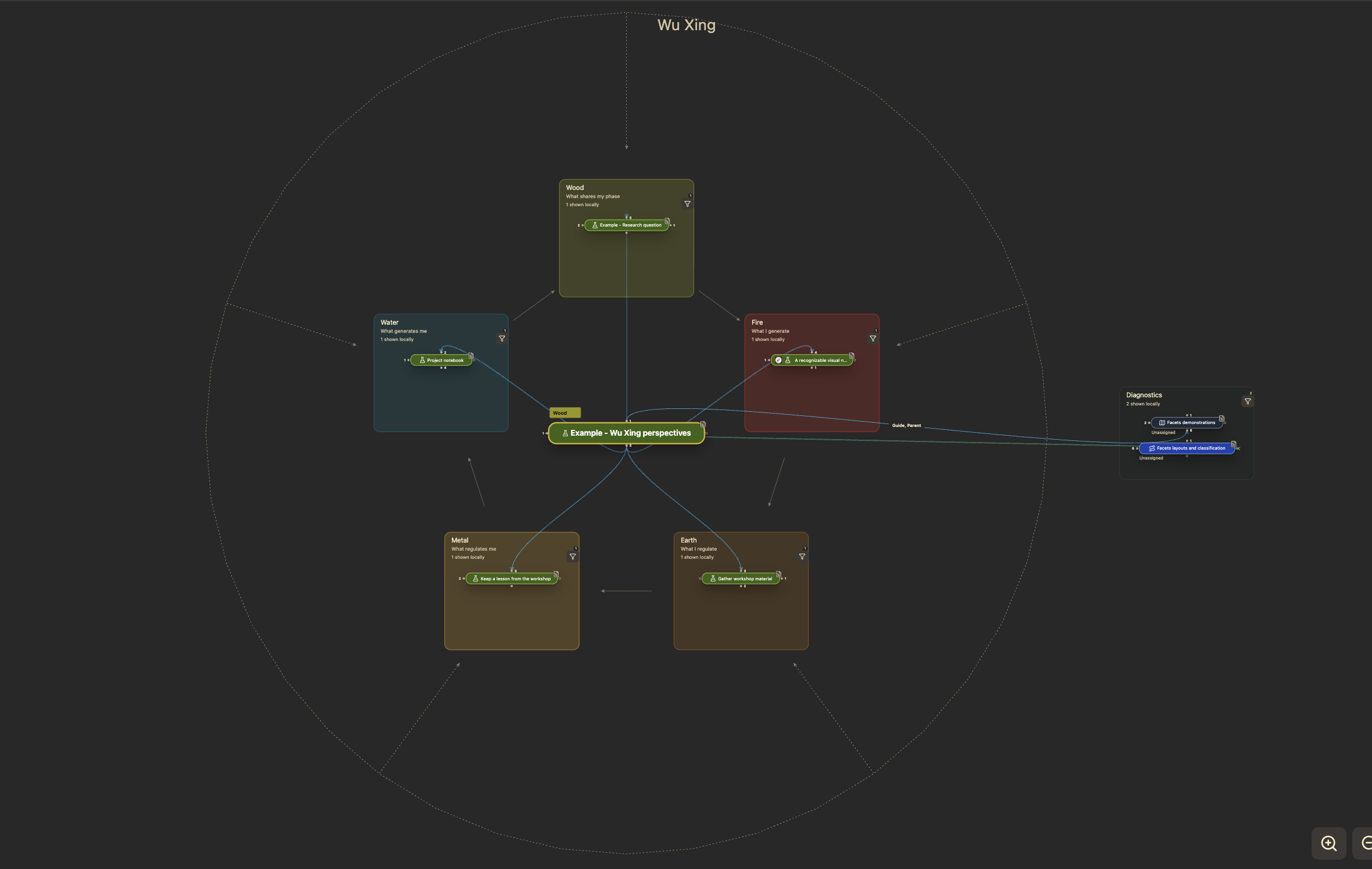
Group connected notes by a Markdown property, tags, note types or category rules. Define three to seven categories and choose an arrangement:
- Circular
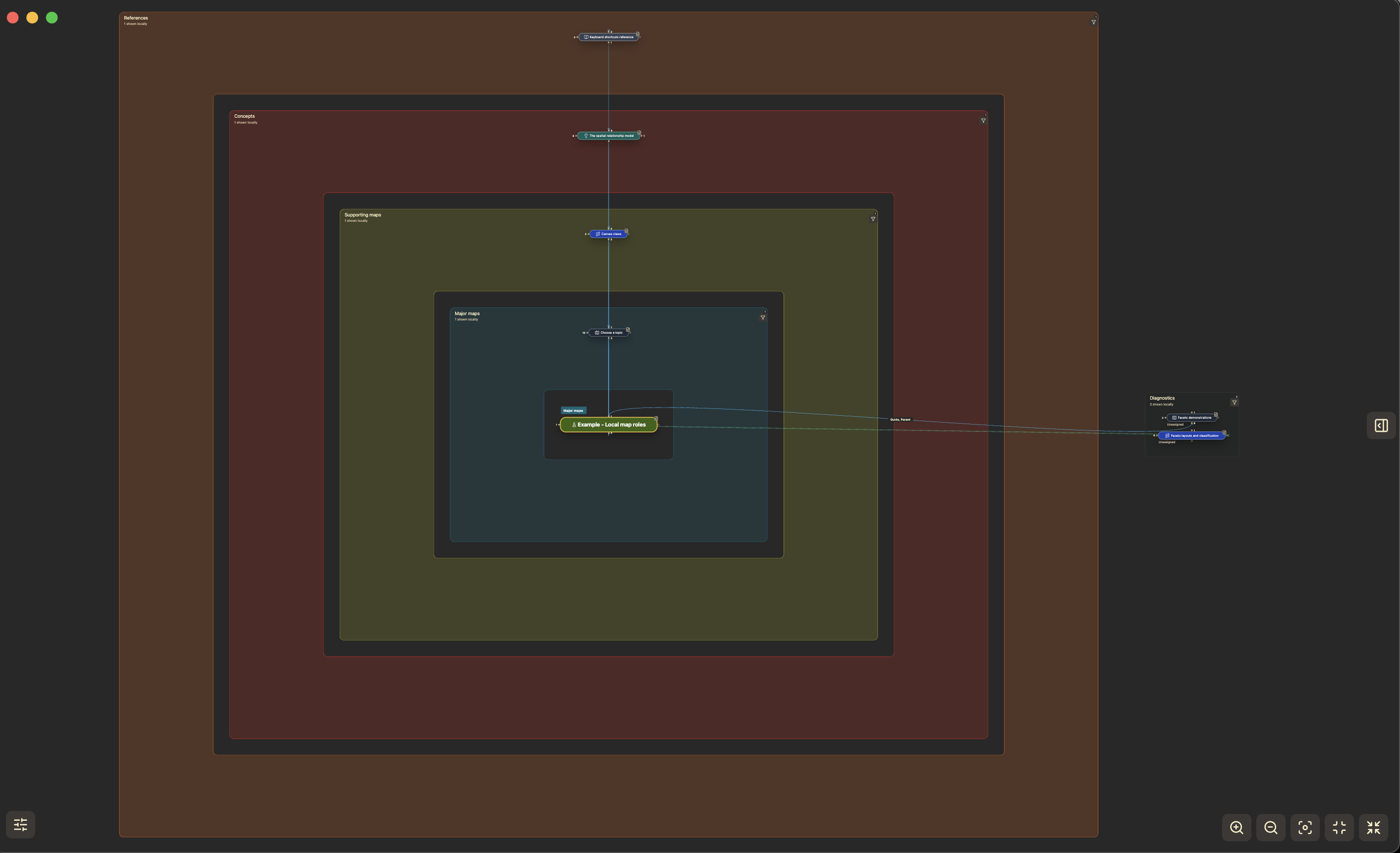
- Concentric rectangles
- Horizontal spread
- Vertical stack
- Quadrants for four categories
Resize category areas directly on the canvas. Add arrows, lines and captions to explain a sequence, and keep each preset’s instructions in its own Markdown help.
Unassigned, Conflicting and Cannot classify states keep uncertain classifications visible. Facets works with the current note’s direct connections; it does not search the whole vault for matching notes.
For writable property-based presets, use Assign category or drop a note into a category, then review the proposed property change. Undo category assignment can reverse the last assignment while that value remains unchanged.
Two presets are included: Wu Xing
and Local map roles.
Wu Xing follows @Dumo_Guo’s Five Phases convention, with relative labels and guides that change with the focused note. ARC, PARA, GTD horizons, eACCESS, Sensemaking and Publishing pipeline are available as optional JSON downloads.
Write where the idea belongs
Open an eligible neighboring Markdown note in place in Compass, Mind Map or Facets, without moving the map’s focus. A Facets note stays in its category.
The containing area temporarily grows to fit the editor and its controls. Closing it restores the configured dimensions.
There is one node editor at a time. Opening another or switching views saves and closes the existing editor first. If saving fails, the editor stays available for recovery. In Mind Map, close the editor before changing the root or folding away its branch.
Reuse presets and lenses
Copy or download a Facets preset or Graph Lens as JSON, then preview it before importing into another vault.
Preset help and referenced palette colors travel with the definition. Choose companion lenses explicitly, and review any replacement of an existing entry. Your notes stay in their vault; imported lenses start disabled.
Explore headings inside your map
Expand a Markdown note’s headings in Compass or at Mind Map’s root. Section folds and graph branches work independently, so you can inspect a document’s internal structure alongside its connected notes.
Headings remain part of the original document. Facets keeps its focus on classification and does not show section trees.
Navigation and polish
- History and pins now reflect configured node colors, borders, icons and prefixes.
- Drag the History bar horizontally with the mouse to scroll.
- Connections to notes outside a scrollable area remain indicated at its boundary.
- Fixed automatic framing that could leave the canvas offscreen after plugin reload.
- Numeric settings now show their current values beside shared slider controls.
- Corrected oversized node-editor and section controls under tablet styling.