This guide covers the fundamental features and basic usage of the Sketch Your Mind Community site for new users, explaining key terms, how to navigate, participate in conversations, and configure notifications.
Welcome! As a new user of Sketch Your Mind Community, we hope you will find this site intuitive and clearly structured. Here’s some guidance to help you get started:
Summary
This guide will cover:
- Basic terms used across the site
- Browsing and navigation tips
- Reading and participating in topics
- Notifications and how to manage them
Basic Terms Used by the Sketch Your Mind Community
Here are some key terms you should be familiar with while using SYM:
- Topic: A series of messages grouped together in a meaningful conversation with a title, listed in a category, beginning with an Original Post, and including all replies in chronological order. This is similar to what other platforms might call a “thread.”
- Post: An individual message within a topic. Each post can be authored by different users, moved to another topic, or become the start of a new topic.
- Original Post (OP): The first post in any topic. It determines the focus of the topic and is associated with the title and tags.
- Category: The primary way of organizing topics. Each topic resides in one category, which can have its own permissions and notification settings. Categories are similar to forums on other sites.
- Tag: A marker used to describe a topic. Each topic can have multiple tags and users can create new ones.
- User: All site activities, like creating posts and recording actions, are centered around registered users. Registration is required for participation. Some of the content on SYM is membership only.
Browsing the Forum
Topic Lists
By default, the SYM Community homepage shows all Latest conversations, but you can filter this list in several ways:


- Filter the list with the buttons on the right
- By category: Click ‘categories’ to see a list of all categories
- By tag: Click ‘tags’ to see a list of all tags.
- Choose from different views with the tabs on the left
- By activity level: Click ‘Top’ to list topics by activity level for a specific time period. Click ‘Hot’ to see the currently trending topics.
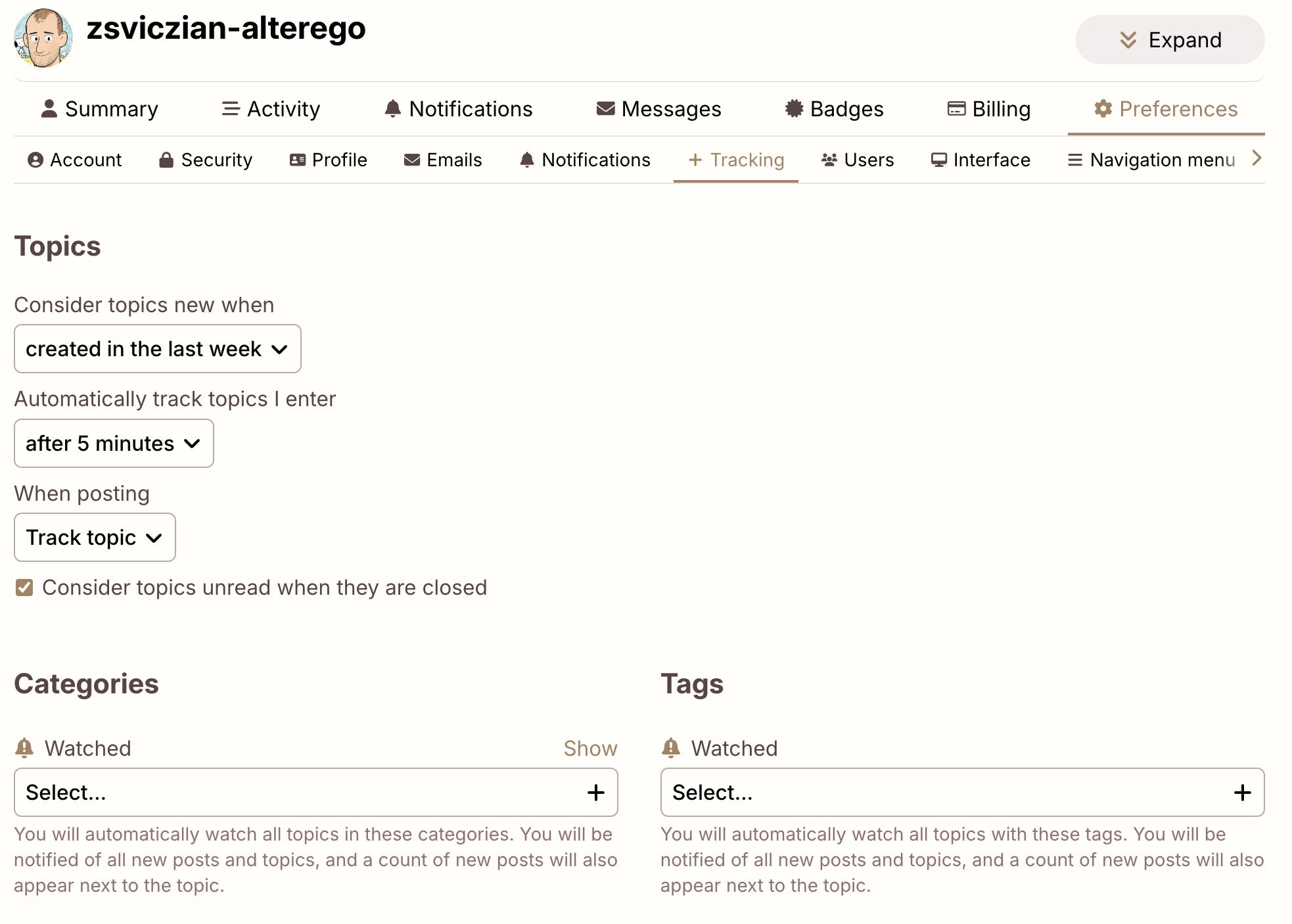
- By new topics: New topics (created in the last 2 days that you haven’t opened - change the filter period here).
- By unread topics: Topics that you’ve opened and read for at least 5 minutes but have new posts (replies) are marked with a number in a teal circle.
Navigation Tools
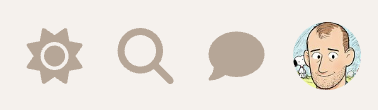
Use the icon buttons at the upper right for dark/light mode, the chat, search, or your user menu. Note that at first chat is disabled for new users.

Reading Topics
Keep Scrolling
Click on a topic title to read replies in chronological order. Use your mouse or the timeline scroll bar on the right to navigate through the conversation. On smaller screens, select the bottom progress bar to expand it.
Jump Back In
Selecting a topic title takes you to your last read post. To enter at the top or bottom, click the reply count or last reply date.
- Topics above the line are new or updated since your last visit.
- Fully read topics have fainter titles.
Related Topics
Posts can be moved to more appropriate topics, or two related topics can be merged. A link will appear allowing readers to jump to the new location. Related topics are listed at the end of the OP.
Taking Part in Conversations
Replying
Press any Reply button to open the editor. You can continue reading or navigate to different topics while composing your reply.
- Replies to a specific post are linked to that post:
- If your reply is next in chronological order, it appears next.
- If not, your post has a link to the previous post for context, and the original post shows a count of replies.
Drafts
Drafts are automatically saved. If minimized or if you navigate away, the editor can be reopened by returning to the topic or clicking the highlighted bar at the bottom of your browser.
Quoting
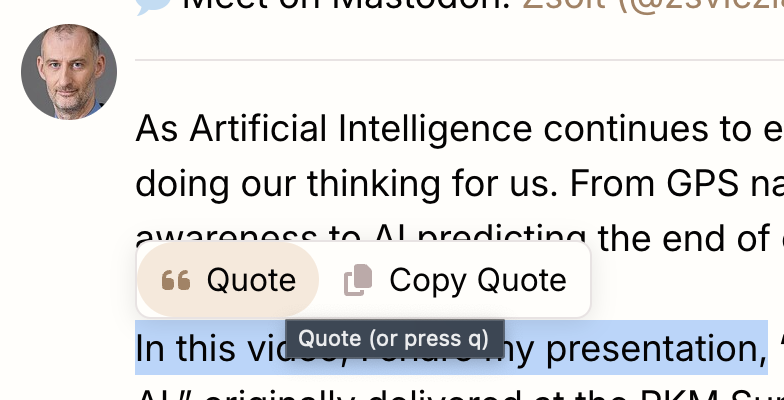
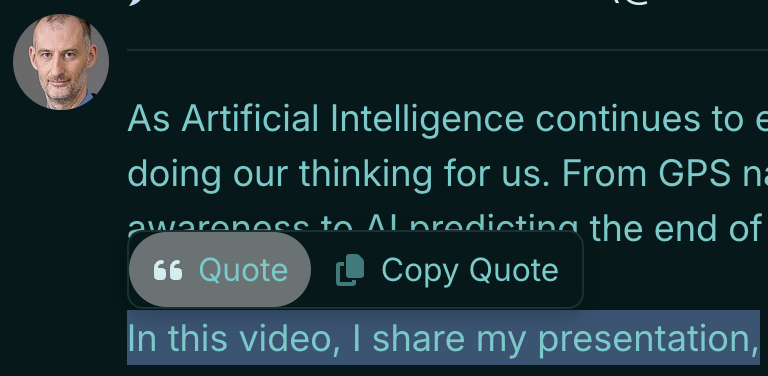
To insert a quote, select the text you wish to quote, then press the Quote button that pops up. Repeat for multiple quotes from different posts or users:
Mentioning
Notify someone by mentioning their name. Type @ to select a username.
Emoji
To use emojis, press the emoji button in the editor or type : to match by name or traditional smileys. Use the more option for the full list.
Oneboxes (Link Previews)
To create a summary for a link, paste it on a line by itself. Starting a topic with a link (e.g. to a wikipedia page or to youtube, can generate a summary in the title field.
You can read more about using the onebox feature in this guide.
Formatting
Discourse uses a rich text editor by default, providing a toolbar with formatting options like bold, italic, lists, headings, and more. You can also switch to Markdown mode in the editor. Formatting is supported via simple HTML, BBCode, or Markdown. For example:
This is <b>bold</b>.
This is [b]bold[/b].
This is **bold**.
For more formatting tips, try this 10-minute markdown tutorial.
For additional formatting options on Sketch Your Mind visit this article.
Actions and Reactions
At the bottom of each post, you will find action buttons:


- Like: Show appreciation for the post.
- Link: Copy a permalink to the reply or topic.
- The “…” button will show more actions, such as Flag, Edit, and Bookmark:


Notifications
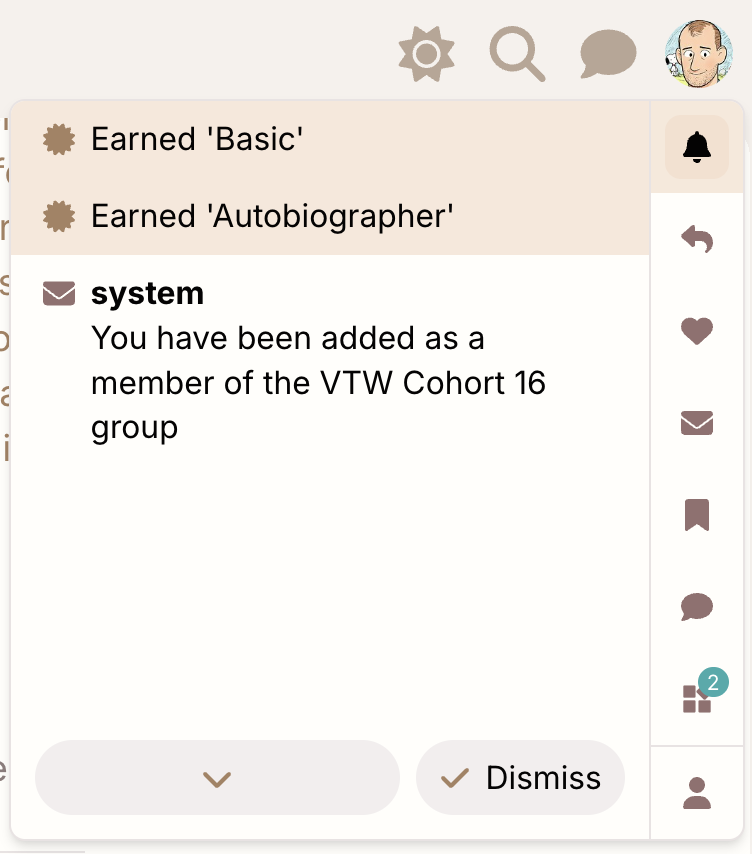
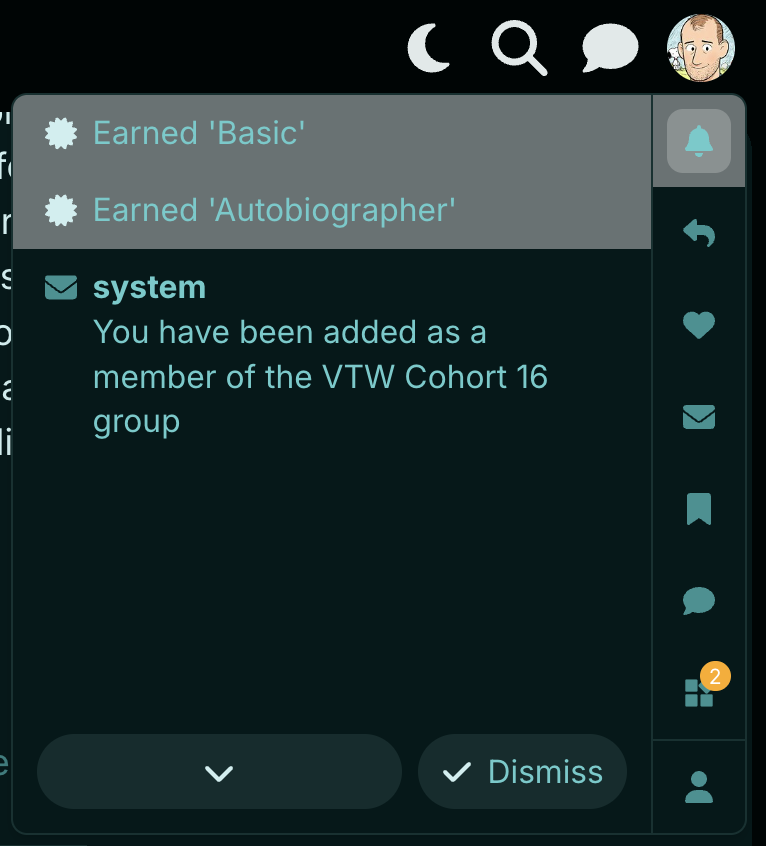
When someone interacts with you directly, a number will appear over your profile picture. For personal messages, an envelope will appear instead. To receive desktop or Android push notifications, allow the site to send you notifications through your browser.
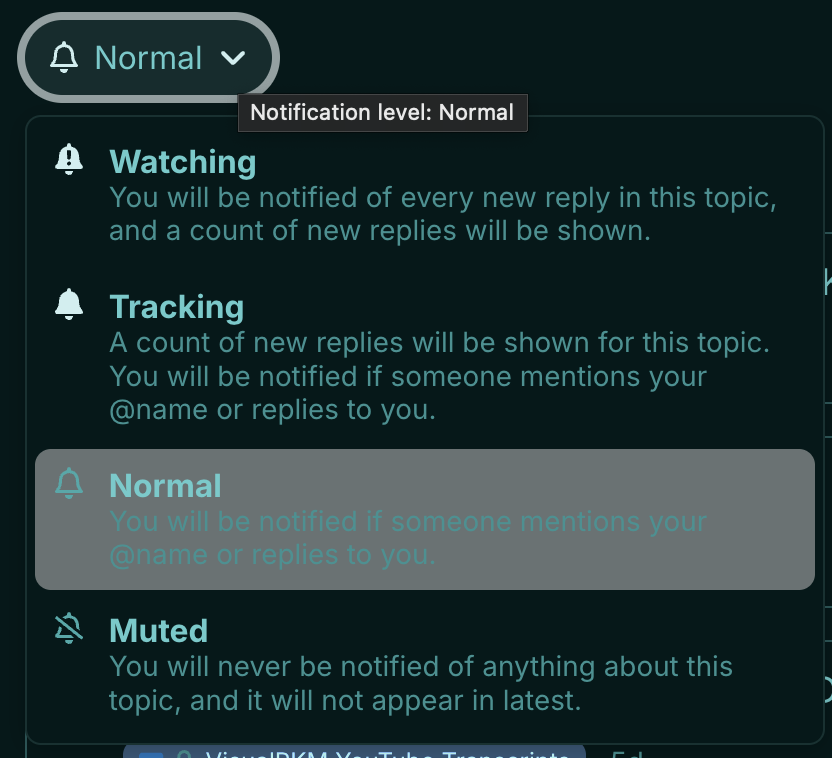
Topic Notifications
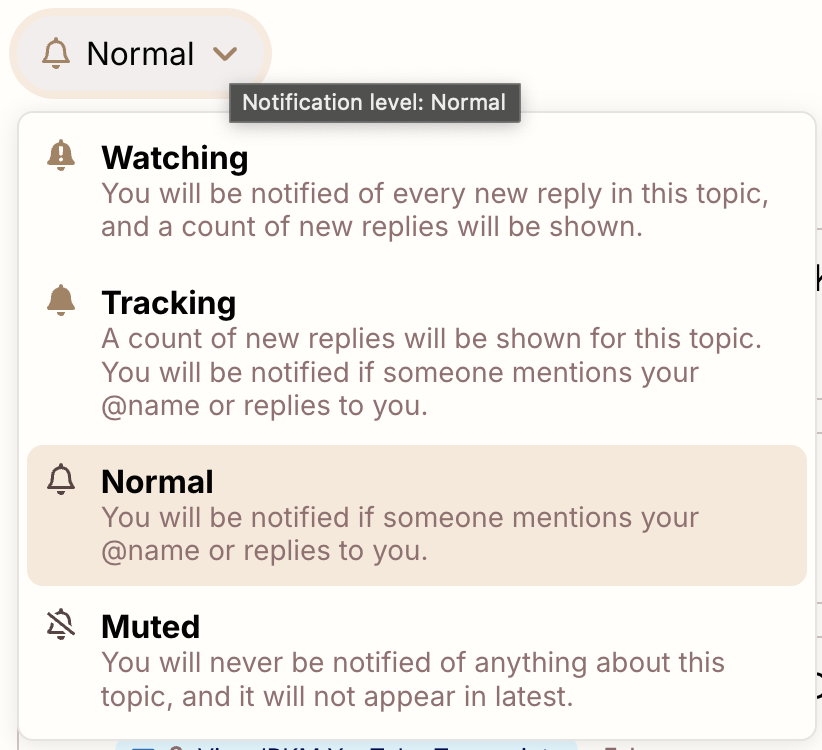
Change notification level for any topic via the notification control at the bottom of the topic:
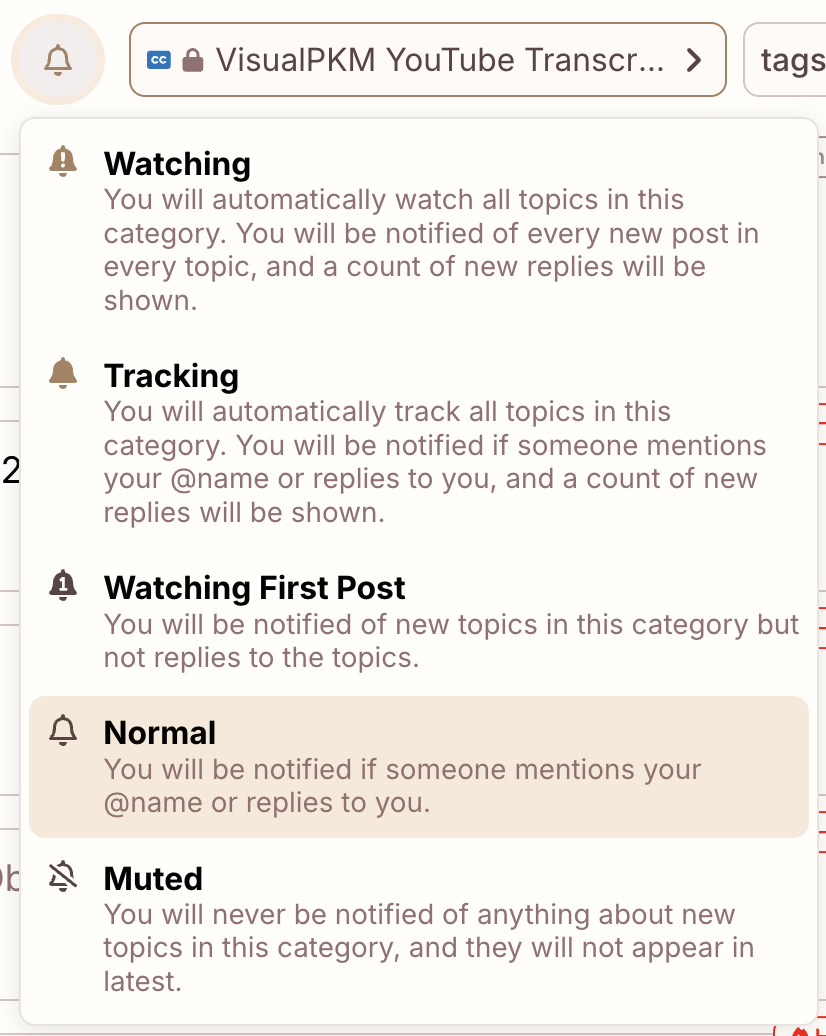
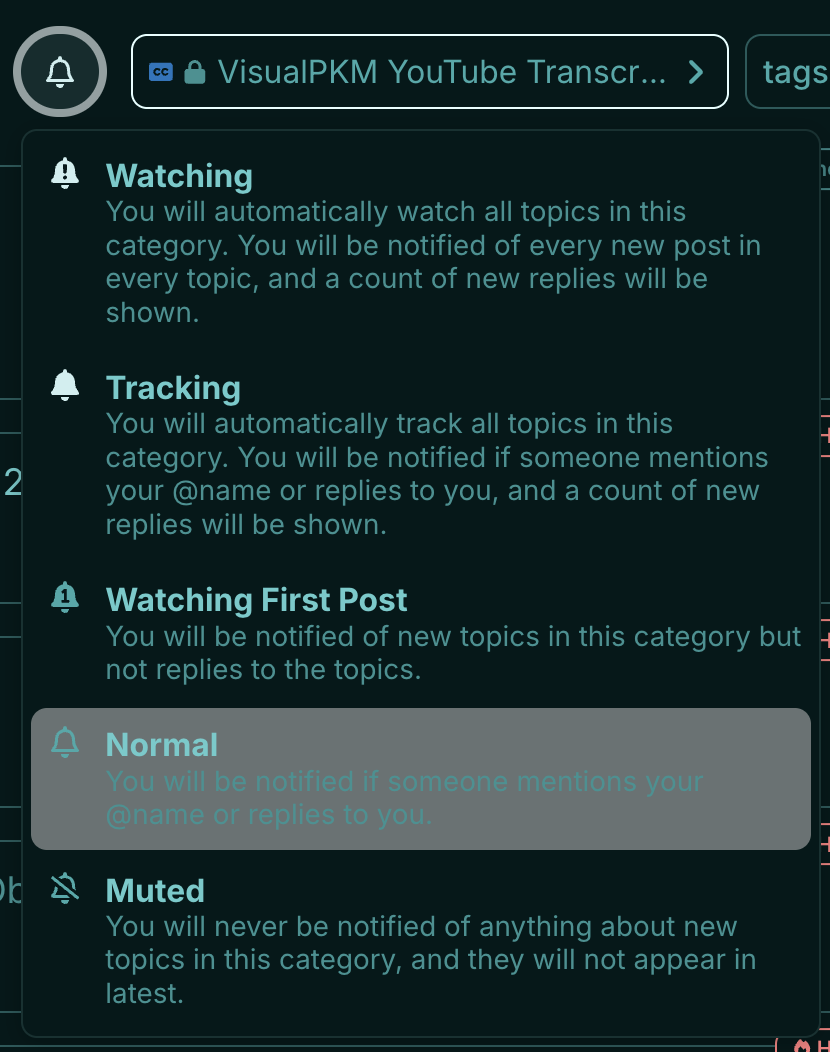
Category Notifications
Set notification levels per category from your user preferences or the category page:
Tag Notifications
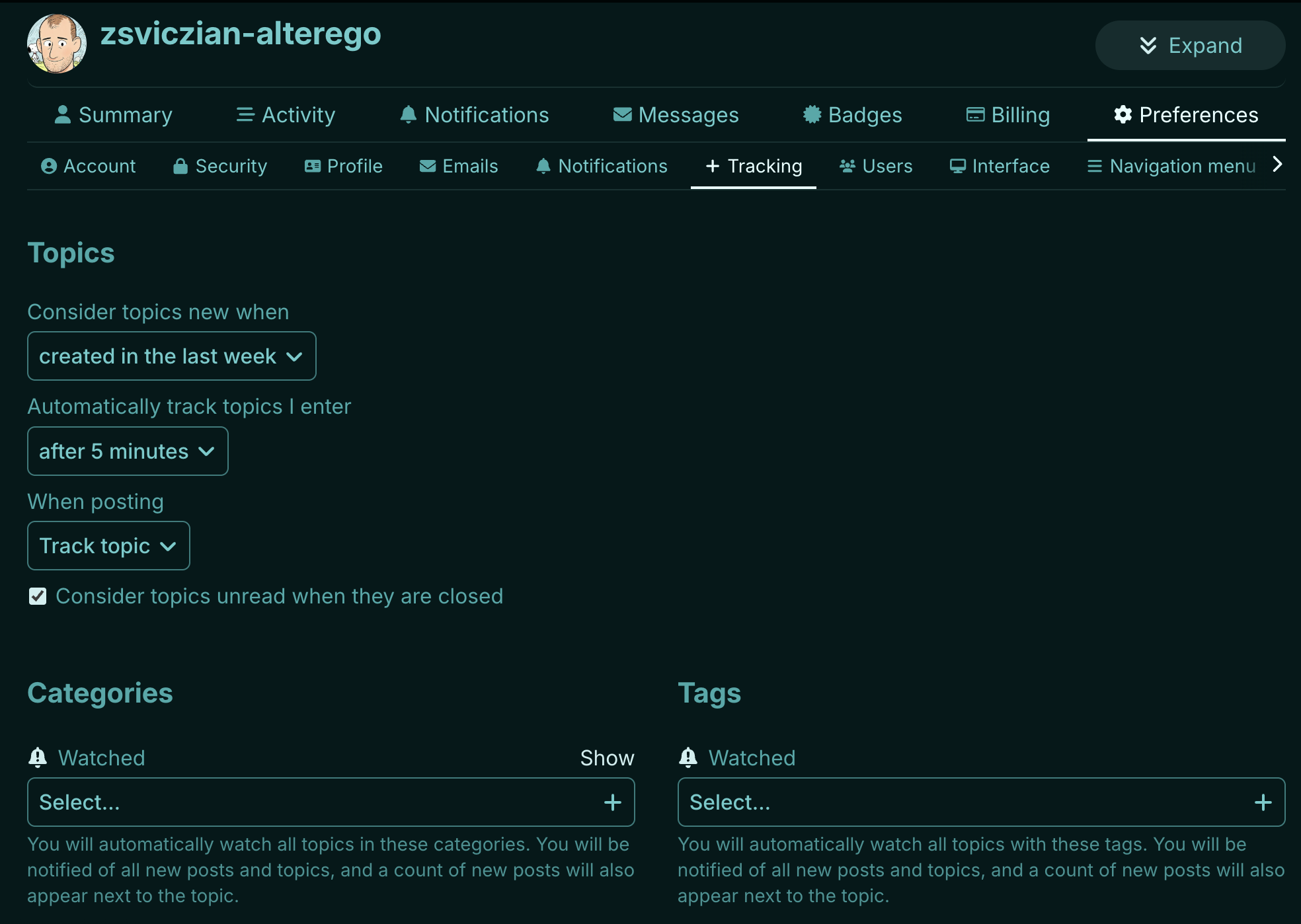
Set notification levels per tag via your user preferences (Under “Tracking”):