If your Excalidraw file opens as a text file instead of in the Excalidraw view, this can happen due to several reasons. Below are the common causes and solutions.
1. Excalidraw Plugin Is Not Running
Ensure that the Excalidraw plugin is enabled in Obsidian. If the plugin is running but the issue persists:
- Navigate to Settings > Community Plugins > Installed Plugins.
- Disable and then re-enable the Excalidraw plugin.
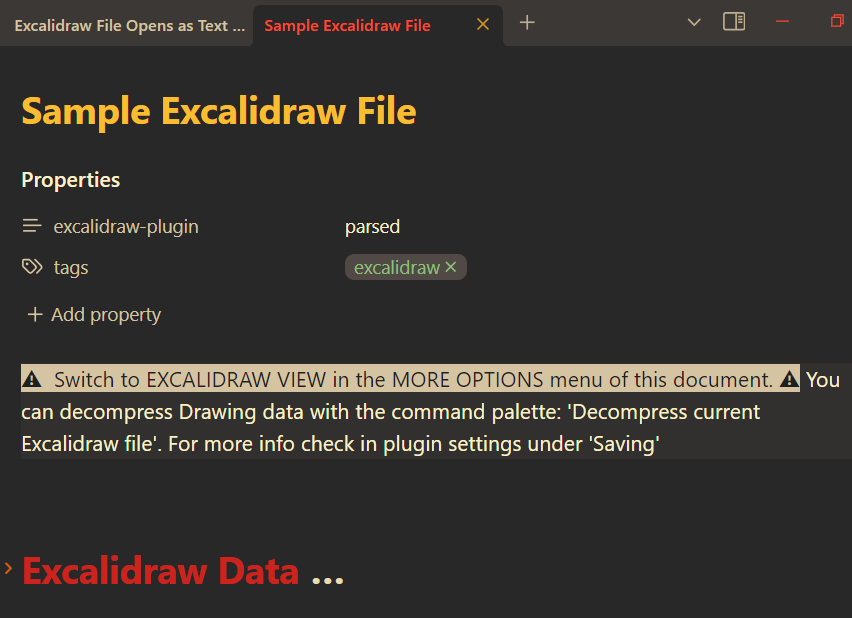
2. File Opened in Markdown View Mode
Sometimes, the file might open in Markdown view mode instead of Excalidraw view. This can happen if:
- You previously opened another file in Markdown view mode, and Obsidian retained this preference.
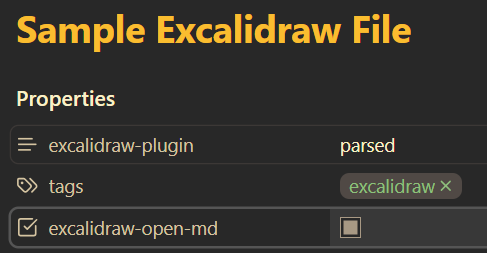
- The file has the
excalidraw-open-md: truefront matter property.
Solutions:
-
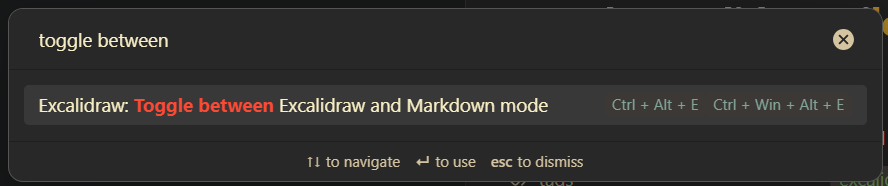
Use the Command Palette (
Ctrl/Cmd + P) to toggle between Excalidraw and Markdown view modes.
-
Set a hotkey in Settings > Hotkeys to quickly switch view modes.
-
Check the front matter of the file in Markdown view. If
excalidraw-open-md: trueis present, set it tofalseor remove the property entirely.

3. File Is Corrupted
A corrupted file may fail to open in Excalidraw view. For troubleshooting steps, refer to the Corrupted Excalidraw Files page.
4. Obsidian Indexing Is Busy
Excalidraw relies on Obsidian’s file index to validate whether a file is an Excalidraw file. If the index is unavailable (e.g., during synchronization, reindexing, or when working with large vaults), the file may open as text.
Solutions:
- Wait for the indexing process to complete.
- Toggle the file back to Excalidraw view mode once the indexing finishes.
By following these steps, you can quickly resolve issues with Excalidraw files opening as text files and continue using your visual notes effectively.