You can define your custom color palettes. The steps are a bit technical, however, once you’ve set up the Color Palette, you can Create your Template, load the palette to the template, and all your new Excalidraw documents will have your custom color palette.
You will find the Palette Loader Script in the Excalidraw Automate Script Library.
These two videos explain how to set up a color palette:
Link:: Color Picker Video
Link:: Palette Loader Video
Video transcripts
- Colorful Second Brain - Part 1: Crafting your colors in Excalidraw-Obsidian
- Colorful Second Brain - Part 2: Excalidraw Color Palette Loader
- Colorful Second Brain - Part 3: Simple rules for beautiful and reusable sketches
- Colorful Second Brain - Part 4: Scripting Color with Color Master in the Obsidian Excalidraw plugin
- Excalidraw 1.9.2 - New Color Picker and Updated Palette Loader
Structure of the palette file
Here’s a sample palette file. The 6 digit hexadecimal values listed one after the other in new rows are the colors. Notice how they are in batches of 5, matching the palette in Excalidraw. Notice also that the numbers do not have the “#” sign at the front.
There are two things you need to understand about the sequence of the colors.
- The first batch is the first row of colors in the picker, the second the second, etc. You can have as many batches as you’d like.
- The batches of 5 are tricky. Colors are in the order of 3-1-2-4-5, that is, the middle color is the first in the sequence. The strange sequence has historical reasons… now, it cannot be changed else impacting backwards compatibility.
Notice also that you can add lines with non-color codes to your file. Palette Loader will skip these. You can use these lines to store the original palette definition should you need to go back to it later.
source:: [Paletton Palette](https://paletton.com/#uid=43j0t0kpSAtfHMQl6FTy1xHyjol)
22A5AB
6CCED2
41B7BC
01989F
017075

FFBA31
FFD582
FFC757
FFAA00
C28100

FF3B31
FF8882
FF5F57
FF0D00
C20A00

FF9031
FFBC82
FFA557
FF7600
C25A00
The palette in the file above looks like this:
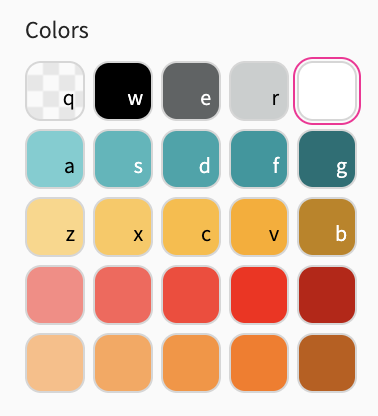
The colors in the first row of the palette are automatically generated. The two grays are tinted based on the middle color of the first first row of your palette: “d” in the screenshot above.
The Palettes Folder
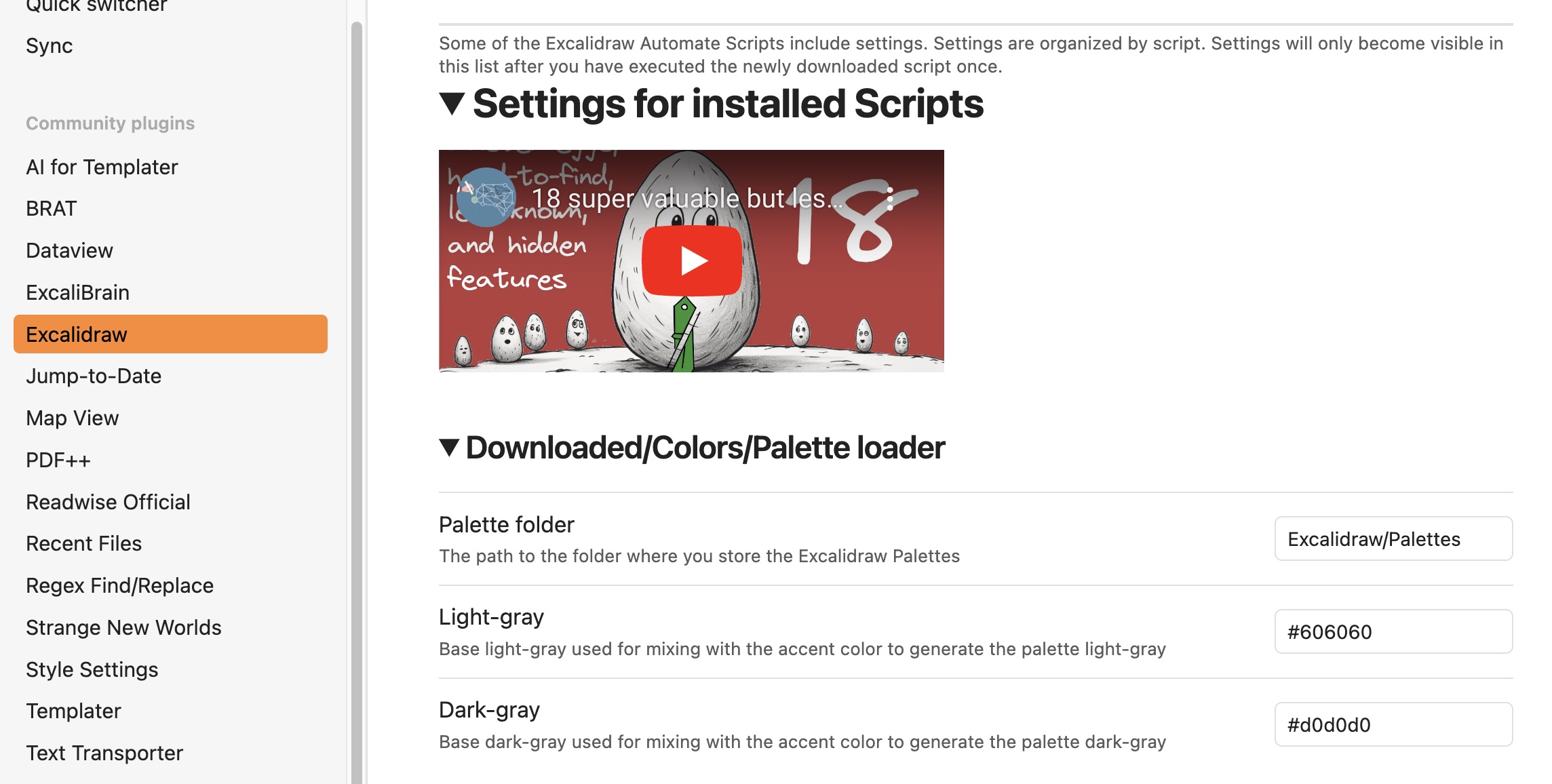
The palette file is a simple markdown file placed in the Palettes Folder. By Default it is the Excalidraw/Palettes folder. After downloading the [[Palette Loader Script]] you need to run it from Obsidian Command Palette. At the first run, the script will register a custom settings section at the bottom of Excalidraw Plugin Settings. You may configure the palette folder here. Note, that foler names are CasE seNSitIVe. You may also define the light and dark gray values used by the script to create the tinted grays in the palette as mentioned above.
Designing your Palette
You can design your palette at http://paletton.com/
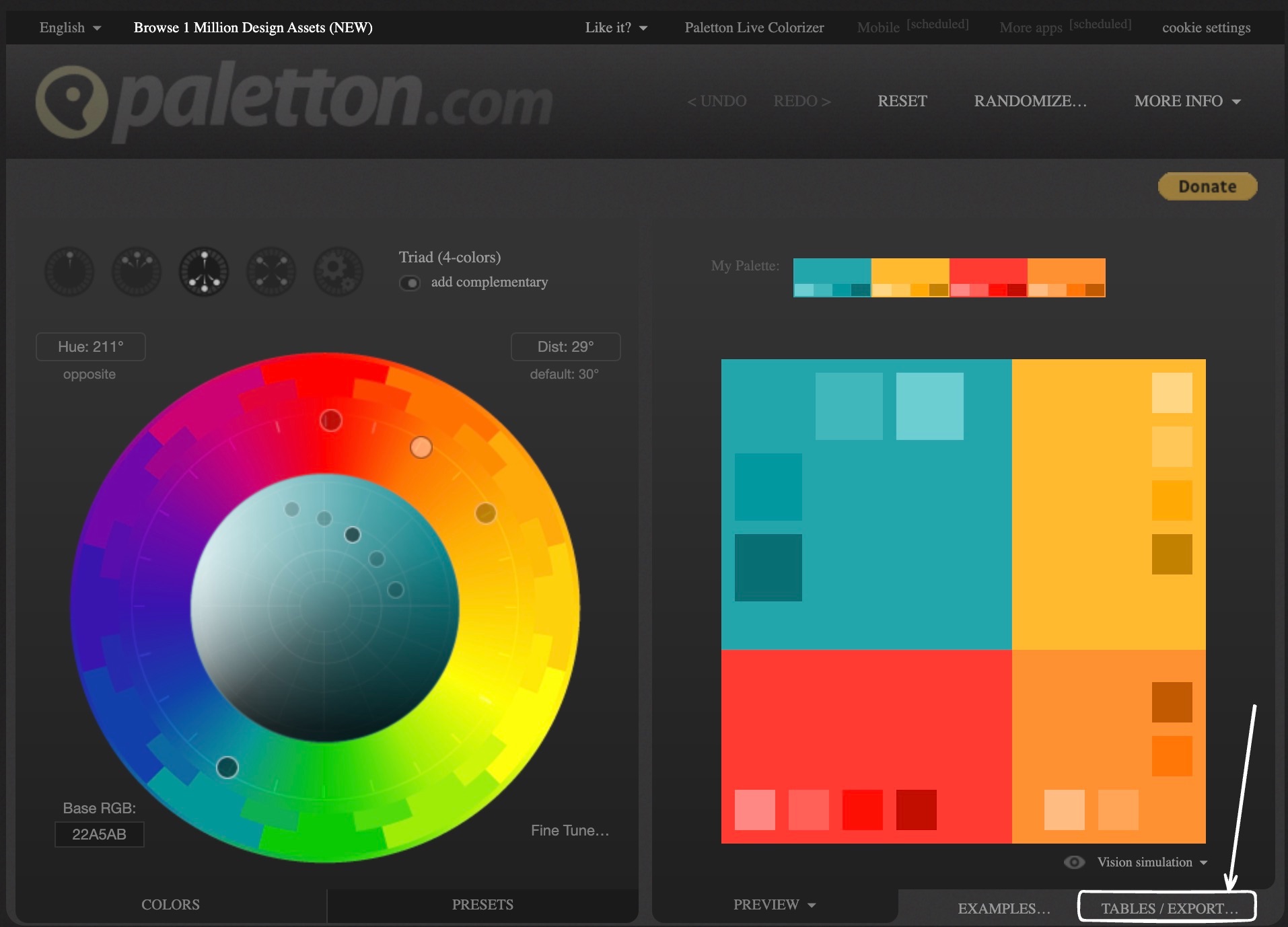
Once you are happy with the colors you need to export the palette.
The easiest option is to click Tables/Export in the bottom right of the screen - However, unfortunately, this feature often does not work  If you run into issues you’ll find alternative approaches further below
- Click the “Tables/Export” button as shown on the screenshot above.
- On the next screen click “as text”. You will need to manually delete “#” from the exported values, and format the file to match the example above, but it only takes a minute.
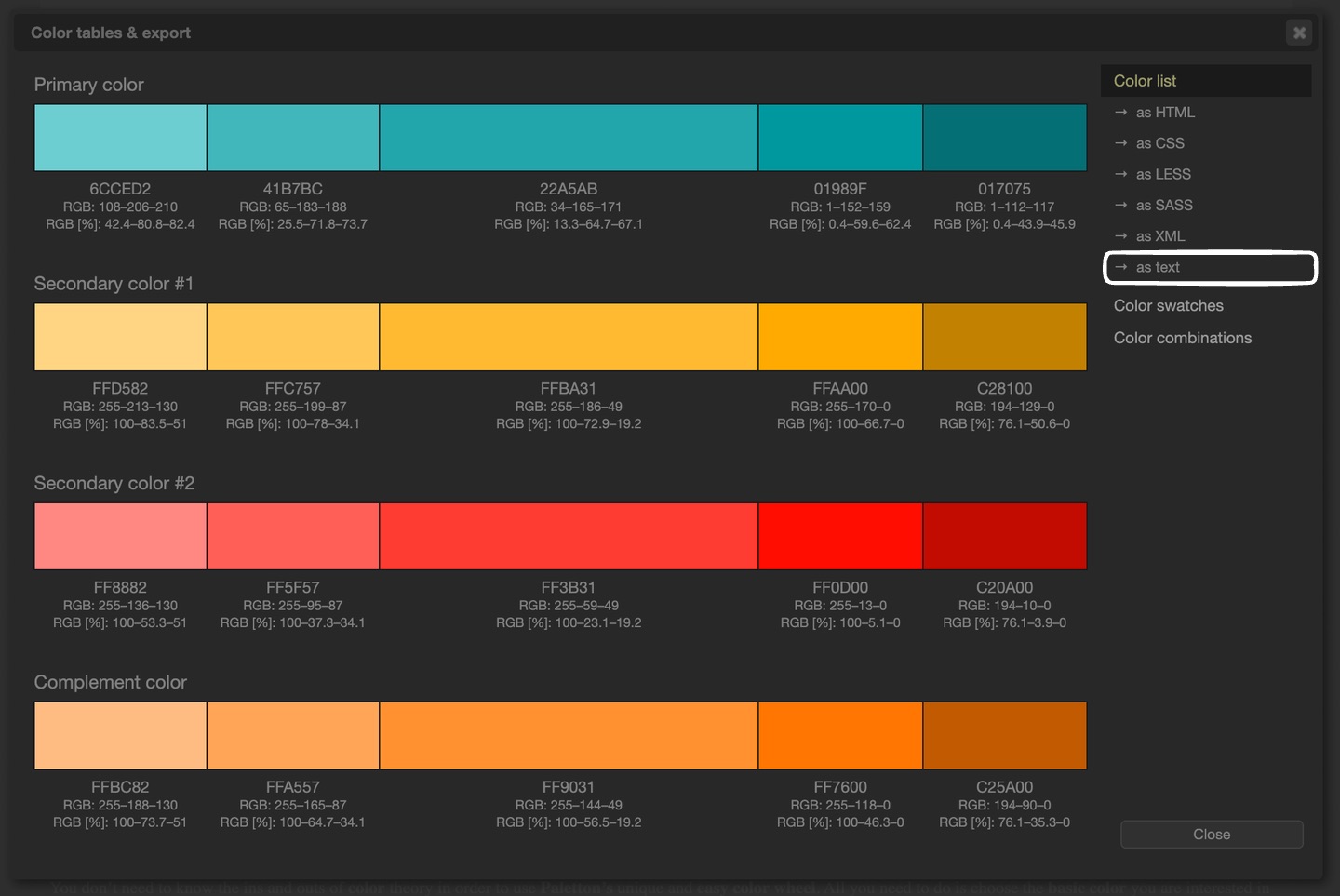
In case “as text” does not work
You have two options in case “as text” does not work.
Option 1 - Manually copy values into a text file
Open a new note in Obsidian and type in the values from the export screen. Don’t forget, in each row the middle value comes first, then the first, second, fourth and fifth. This should take no more than 5 minutes.
Option 2 - Use script to extract the values
If you are comfortable with scripting you can follow the below approach. However, note, that sometimes the structure of the Paletton page changes, in this case you may need to tweak the code a bit.
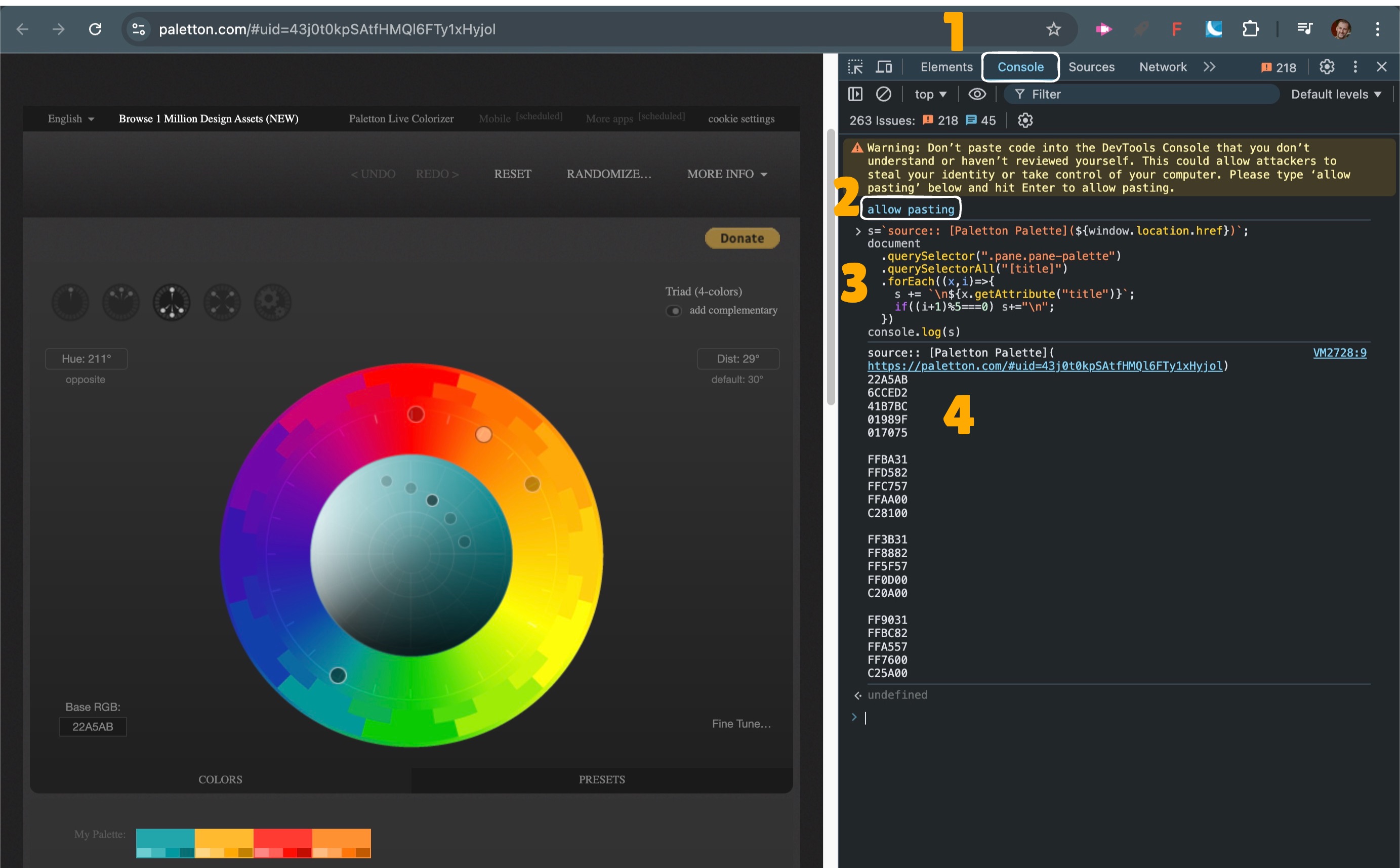
- On the palette configuration page press CTRL+SHIFT+i or (CMD+OPT+i on a Mac).
- Click “Console”
- Paste the below script. Note, if you have not pasted script to console before you will be prompted with a warning. You need to type: “allow pasting”.
- Paste the code and run it. If you run into an error, then Paletton has likely changed something. You can try to figure out the change using the Elements browser. At this point your on your own. You are probably better off manually copying the values to a text file as per the previous point.
- Select the result, copy it to the clipboard and paste it to your palette file in Obsidian.
Here’s the script you want to run:
s=`source:: [Paletton Palette](${window.location.href})`;
document
  .querySelector(".pane.pane-palette")
  .querySelectorAll("[title]")
  .forEach((x,i)=>{
    s += `\n${x.getAttribute("title")}`;
    if((i+1)%5===0) s+="\n";
  })
console.log(s)
The Excalidraw appState Custom Palette Data Object
The Excalidraw drawing is stored in a JSON data structure under Excalidraw Data / Drawing. You can find this JSON by switching to [[Markdown View]] and selecting [[Decompress current Excalidraw File]] from the Obsidian Command Palette (in case you see [[compressed-json]] in the [[Drawing Section]] of the file).
The color palette is at the end of the JSON in the appState section. This is its structure:
colorPalette: {
  canvasBackground: [string, string, string, string, string][] | string[],
  elementBackground: [string, string, string, string, string][] | string[],
  elementStroke: [string, string, string, string, string][] | string[],
  topPicks: {
    canvasBackground: [string, string, string, string, string],
    elementStroke: [string, string, string, string, string],
    elementBackground: [string, string, string, string, string]
  },
}
Finally there is a GitHub Gist with the code. In case of questions you might find answers here